> ## Documentation Index
> Fetch the complete documentation index at: https://ngquct-fix-mac-to-ios-connection-sync.mintlify.site/llms.txt
> Use this file to discover all available pages before exploring further.
# Quick Start
> Connect to your first database and run a query in a few minutes
Install TablePro, connect to a database, and run your first query.
## Step 1: Install
Install via Homebrew (`brew install --cask tablepro`) or download the DMG from GitHub Releases. See [Installation](/installation).
## Step 2: Create Your First Connection
The welcome window has an actions panel on the left with **Create Connection...** and an **Add from Existing** menu. Your saved connections are on the right. The `+` button, the group button, and the search field sit at the top of the connections panel. Press `Cmd+F` to focus search. Each connection shows its tags and group.
* **Add from Existing** holds **Import from URL...**, **Import from Other App...** (TablePlus, DataGrip, DBeaver, Beekeeper Studio, Sequel Ace, and others), **Open Project Folder...**, and **Import Connections...**.
* With no connections saved yet, the right panel offers **Try Sample Database**. It opens the bundled Chinook SQLite database, no server needed. Reset it any time from **File > Reset Sample Database...**.
Click **Create Connection...**. A chooser sheet lists every supported database type grouped by category. Pick one and click **Continue**.
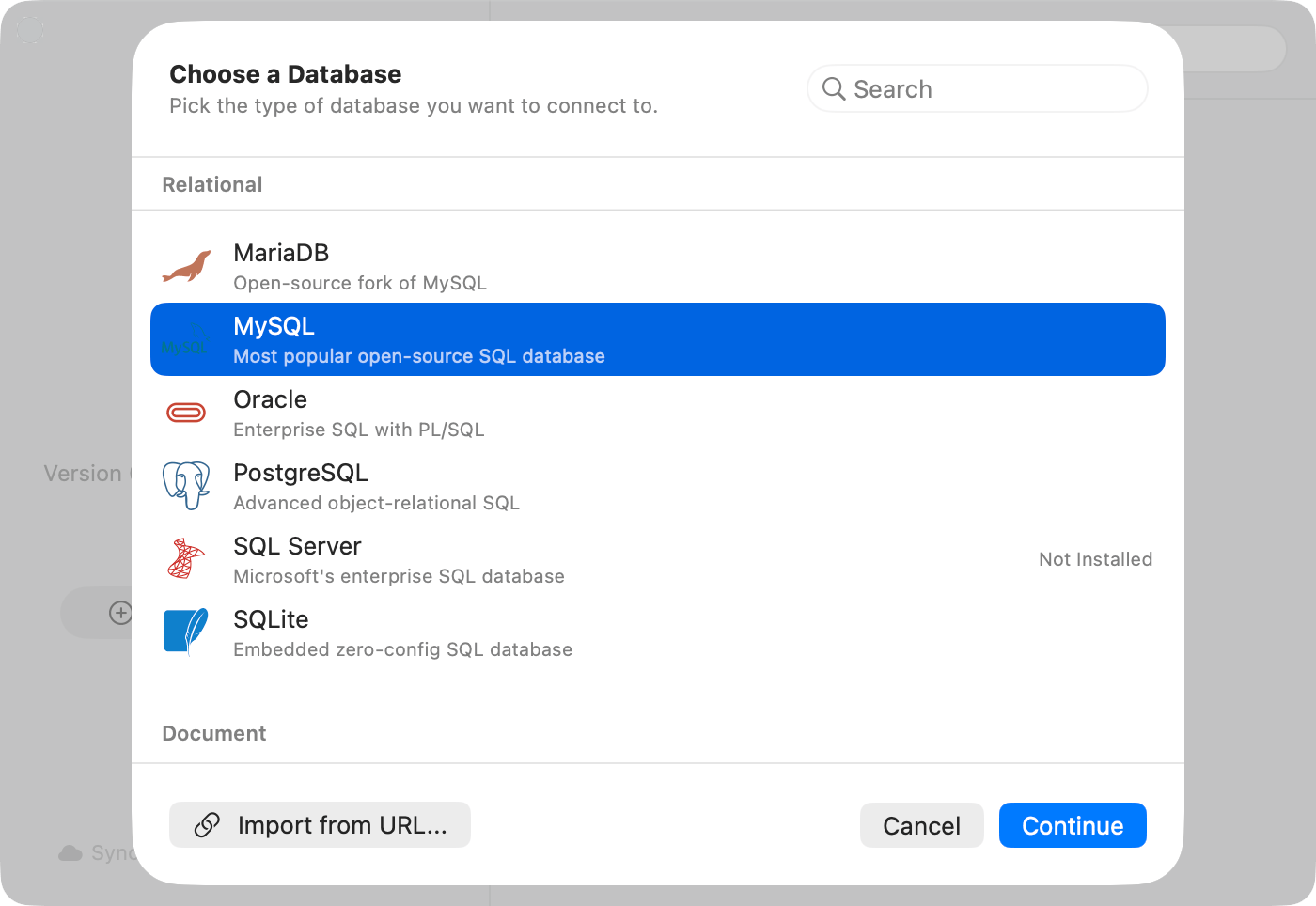
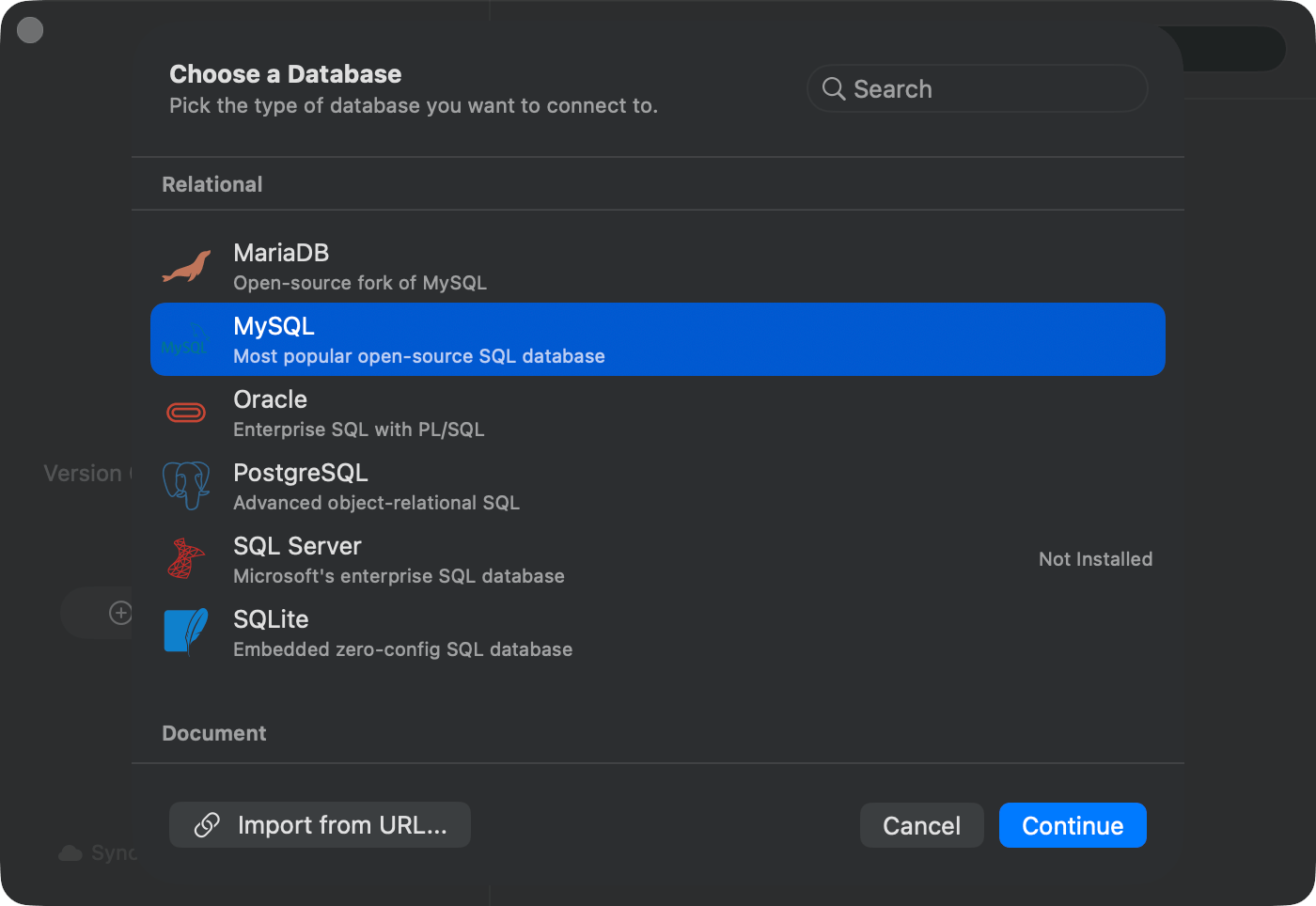 Databases beyond the bundled drivers (MongoDB, Oracle, MSSQL, and others) run as plugins. The first time you pick one, TablePro asks to download the driver before opening the form.
## Step 3: Fill In, Test, and Save
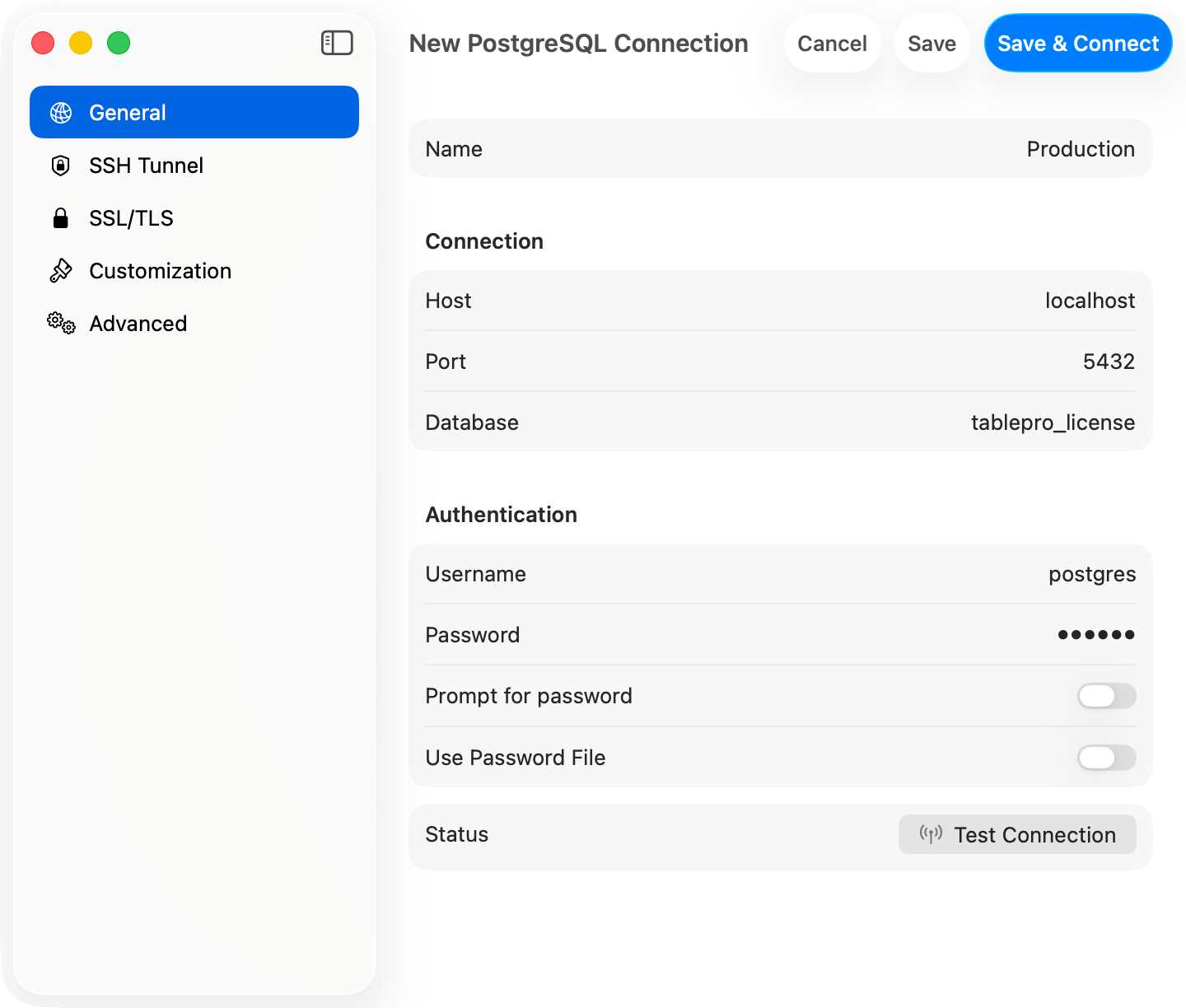
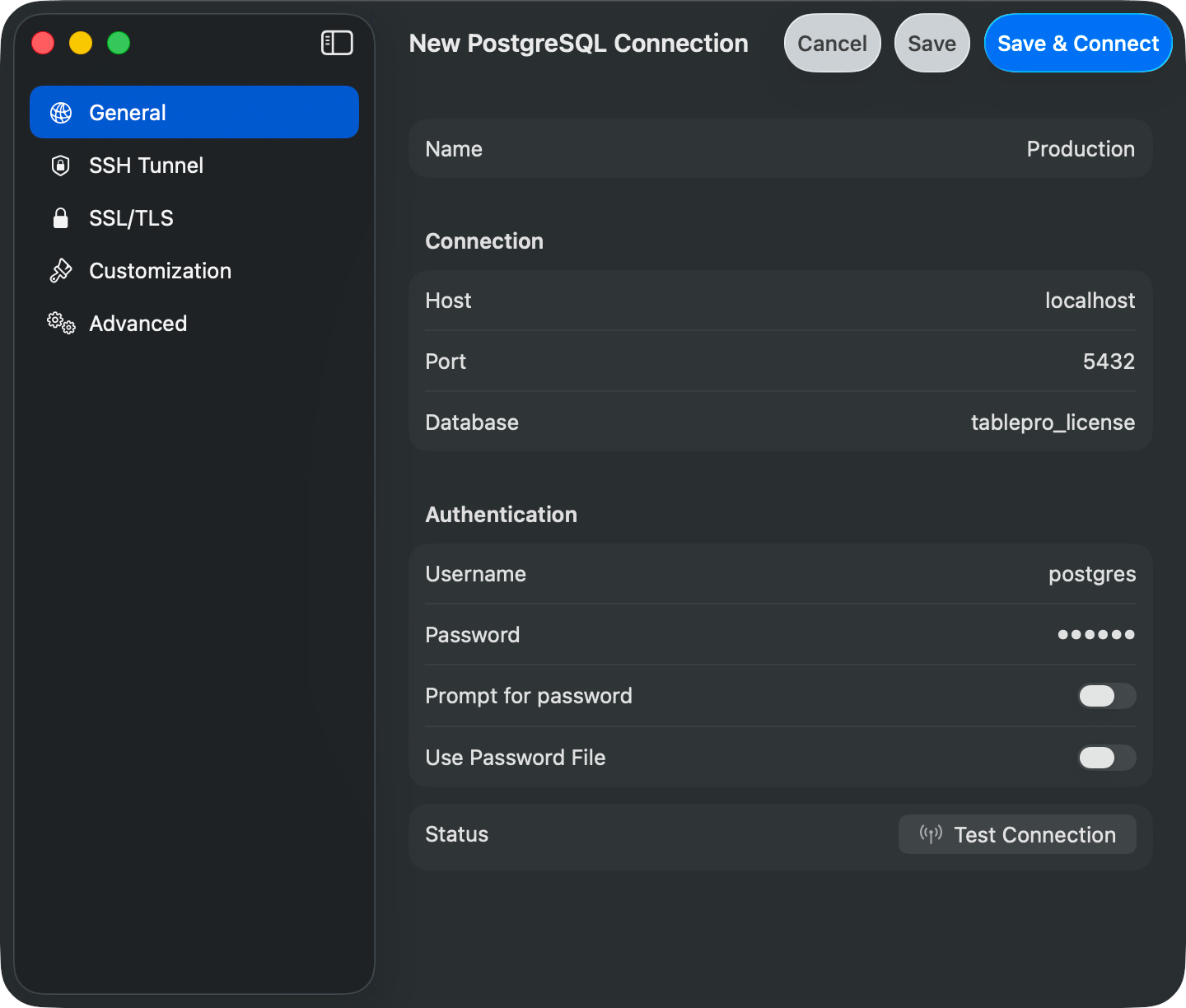
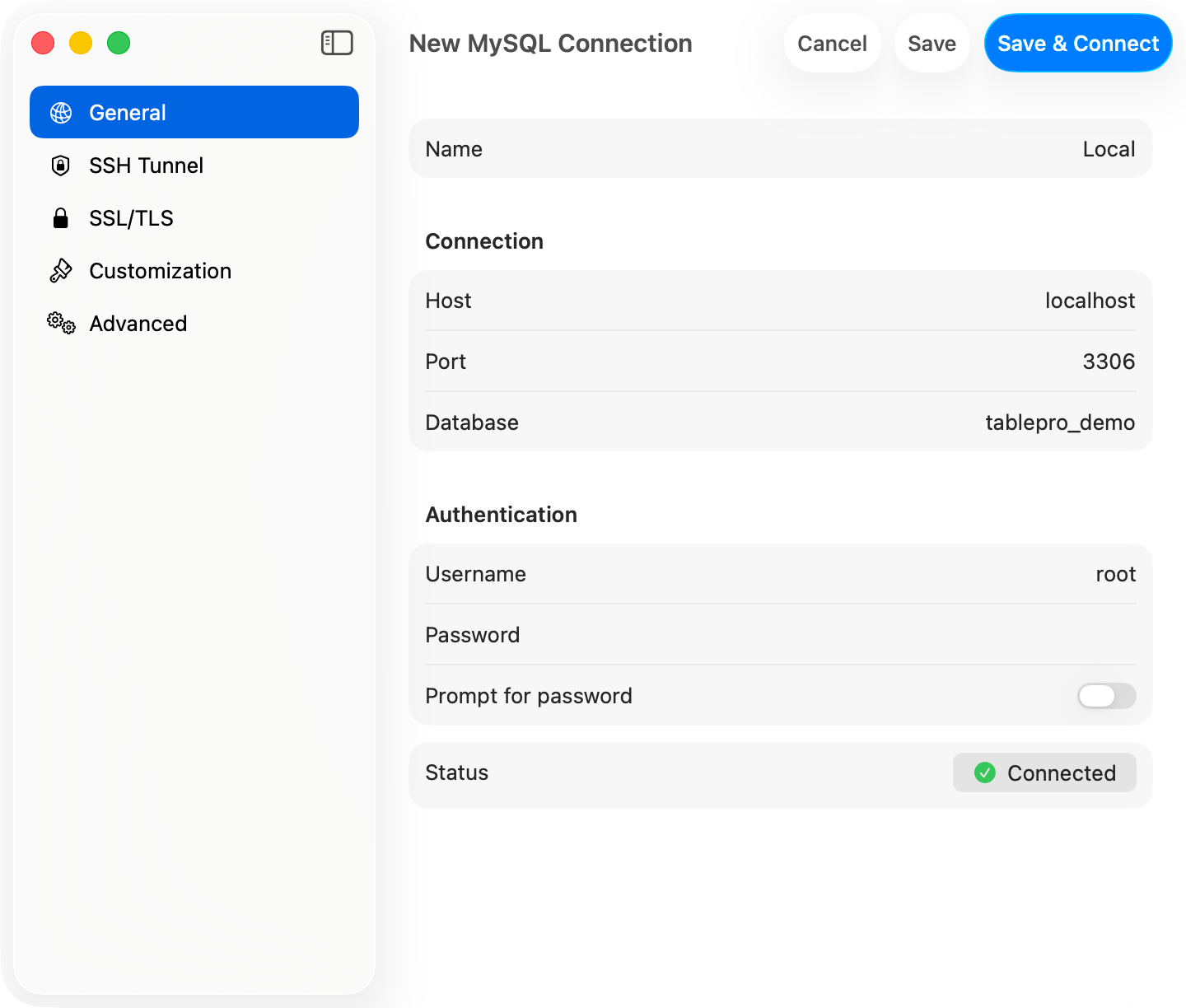
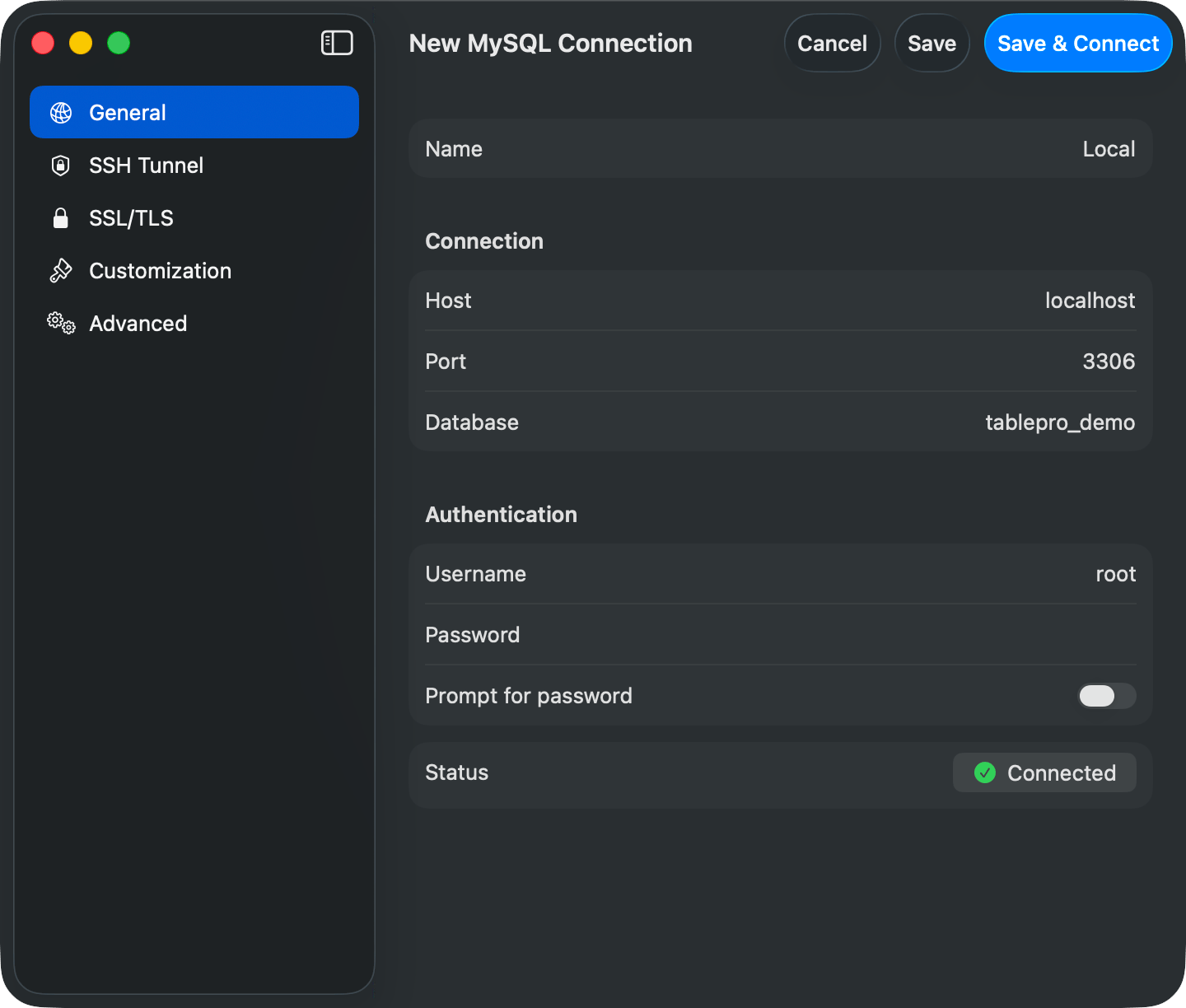
The form pre-fills the host (`localhost`) and the default port. The username is optional; leave it empty and the database uses its own default, the same way `psql` and `mysql` do. Typical values:
* **MySQL**: port `3306`
* **PostgreSQL**: port `5432`
* **MongoDB**: port `27017`
* **SQLite**: browse to a `.sqlite` or `.db` file, no auth needed
Databases beyond the bundled drivers (MongoDB, Oracle, MSSQL, and others) run as plugins. The first time you pick one, TablePro asks to download the driver before opening the form.
## Step 3: Fill In, Test, and Save
The form pre-fills the host (`localhost`) and the default port. The username is optional; leave it empty and the database uses its own default, the same way `psql` and `mysql` do. Typical values:
* **MySQL**: port `3306`
* **PostgreSQL**: port `5432`
* **MongoDB**: port `27017`
* **SQLite**: browse to a `.sqlite` or `.db` file, no auth needed
 Already have a connection URL? Click **Import from URL...** in the chooser footer. TablePro detects the database type and pre-fills the form for you.
Click **Test Connection** in the **Status** row at the bottom of the General pane. When it shows a green checkmark, click **Save & Connect** in the toolbar.
Already have a connection URL? Click **Import from URL...** in the chooser footer. TablePro detects the database type and pre-fills the form for you.
Click **Test Connection** in the **Status** row at the bottom of the General pane. When it shows a green checkmark, click **Save & Connect** in the toolbar.
 ## Step 4: Run Your First Query
The main window has a sidebar on the left (databases and tables), the open tab in the middle, and an inspector on the right. A table tab shows the data grid. A query tab puts the SQL editor above the result grid.
## Step 4: Run Your First Query
The main window has a sidebar on the left (databases and tables), the open tab in the middle, and an inspector on the right. A table tab shows the data grid. A query tab puts the SQL editor above the result grid.
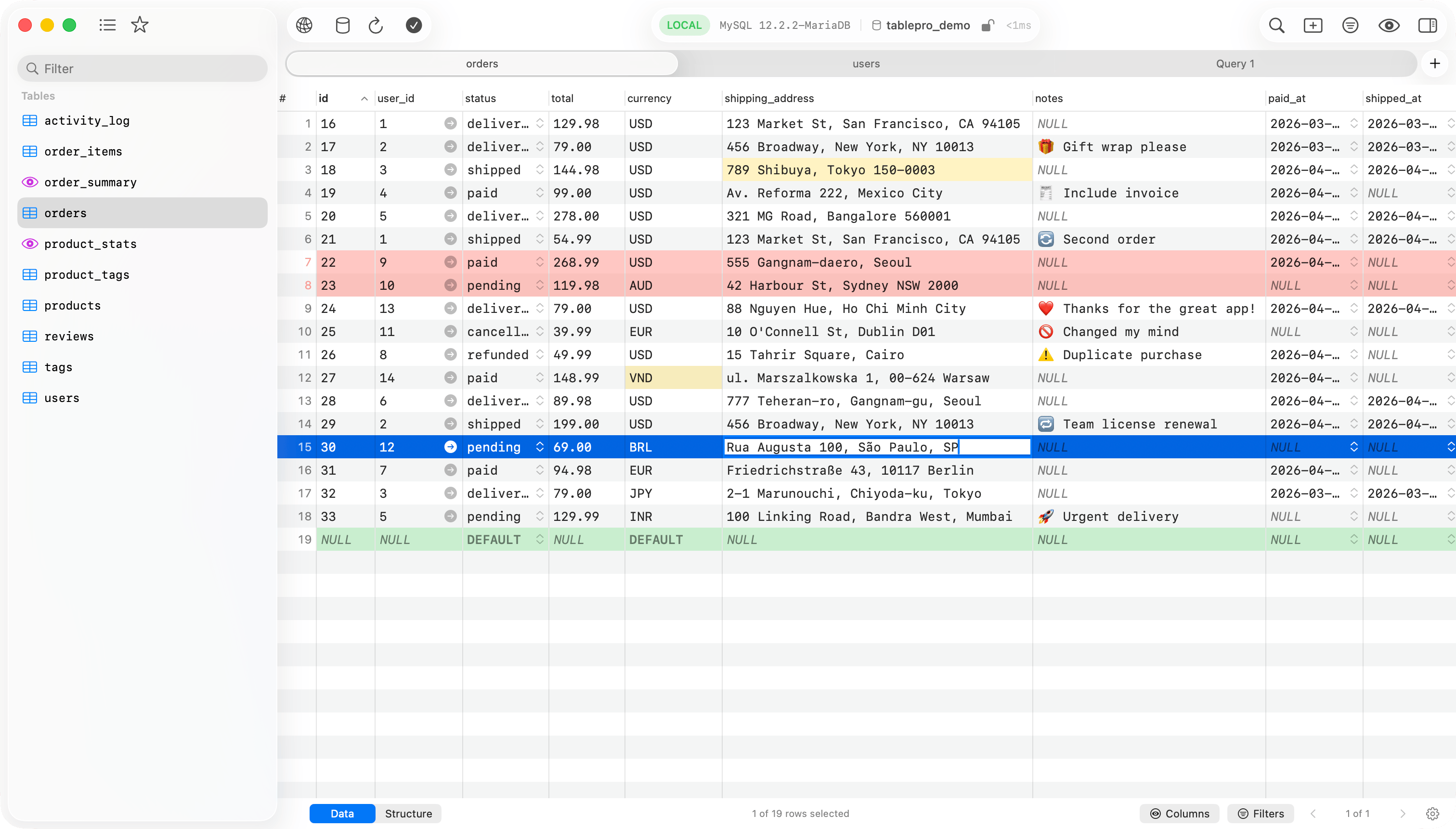
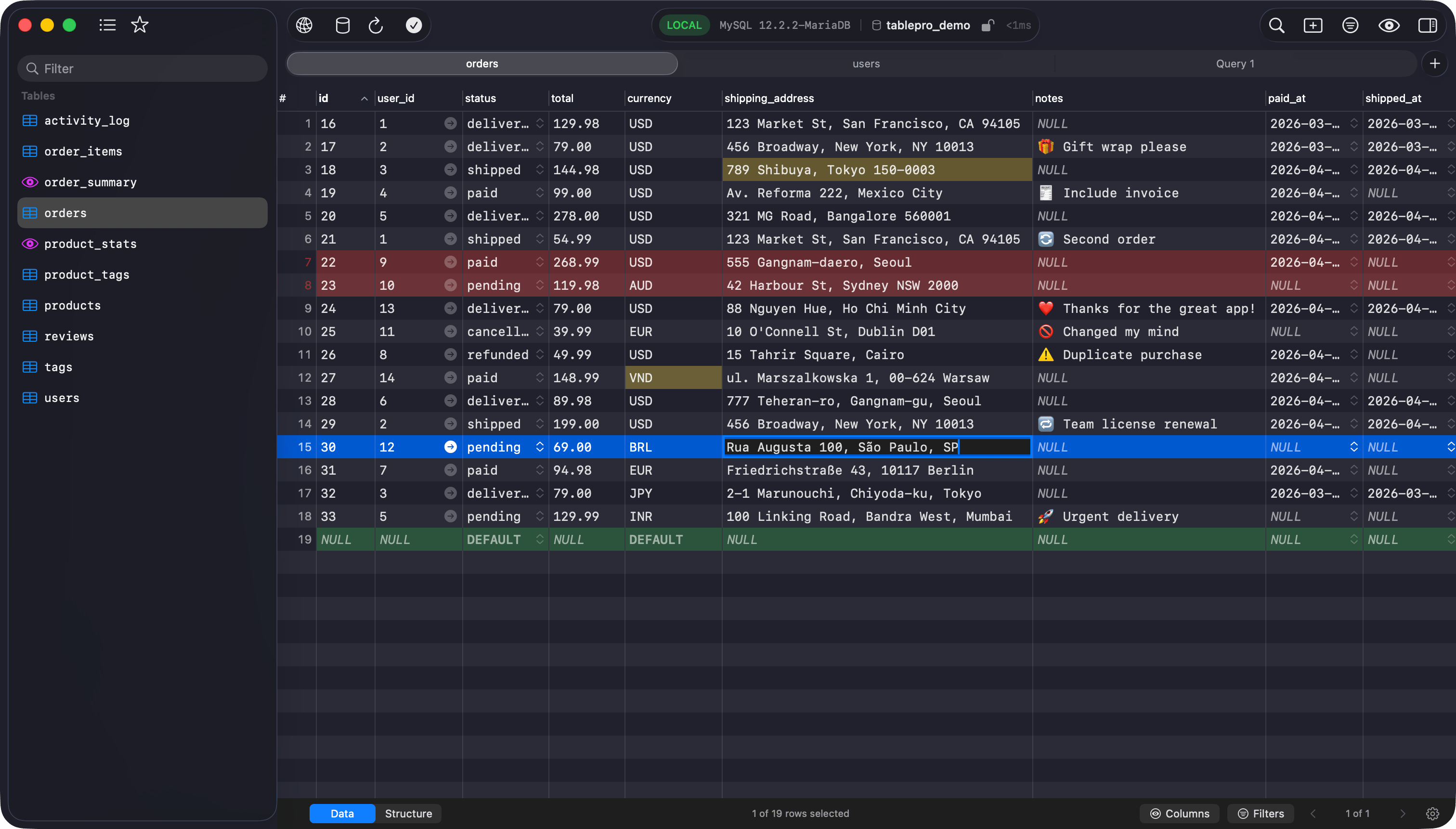 Click a table in the sidebar to browse it. For SQL, press `Cmd+T` to open a query tab, type a query, and press `Cmd+Enter`:
```sql theme={null}
SELECT * FROM users LIMIT 10;
```
## What's Next
Explore [connections](/databases/overview), [SSH tunneling](/databases/ssh-tunneling), [keyboard shortcuts](/features/keyboard-shortcuts), or [AI features](/features/ai-assistant).
Need help? [Open an issue](https://github.com/TableProApp/TablePro/issues) on GitHub.
Click a table in the sidebar to browse it. For SQL, press `Cmd+T` to open a query tab, type a query, and press `Cmd+Enter`:
```sql theme={null}
SELECT * FROM users LIMIT 10;
```
## What's Next
Explore [connections](/databases/overview), [SSH tunneling](/databases/ssh-tunneling), [keyboard shortcuts](/features/keyboard-shortcuts), or [AI features](/features/ai-assistant).
Need help? [Open an issue](https://github.com/TableProApp/TablePro/issues) on GitHub.